- Written by: Hummaid Naseer
- August 25, 2025
- Categories: API and Framework
Containers are lightweight, portable environments that bundle an application with all its dependencies, ensuring consistent performance across different machines and platforms. Unlike virtual machines, containers share the host OS kernel, making them faster, smaller, and more resource-efficient. Docker is the leading tool for managing containers: it allows developers to build images, run containers, and share them via Docker Hub. With tools like Dockerfile and Docker CLI, it’s easy to automate and deploy containerized apps. Containers are widely used in microservices, CI/CD, testing, and scalable cloud environments, and integrate seamlessly with DevOps tools like Kubernetes, Jenkins, Terraform, and Prometheus. Mastering Docker is a crucial step for anyone entering the world of DevOps and modern software delivery.
What Are Containers?
“Containers are like lightweight, portable boxes that carry your app and everything it needs to run — anywhere.”
A container packages an application along with its dependencies, libraries, and environment settings. So it runs consistently, no matter where it’s deployed: your laptop, a server, or the cloud.
Key Benefits of Containers
Lightweight: No need to boot an entire OS like a VM
Isolated: Each container runs its own app environment
Fast: Containers start up in seconds
Portable: “Build once, run anywhere” — across machines and clouds
Consistent: Eliminates “it works on my machine” issues
Containers vs. Virtual Machines (VMs)
Feature | Containers | Virtual Machines |
Footprint | Lightweight (shares host OS kernel) | Heavy (each has its OS) |
Startup Speed | Starts in seconds | Takes minutes to boot |
Isolation | Process-level isolation | Full OS-level isolation |
Portability | Highly portable across environments | Less portable — tied to OS/hypervisor |
Resource Efficiency | More efficient, uses less memory/CPU | More resource-heavy |
Think of it like this:
VM = full apartment (separate building, full setup)
Container = studio room (compact, efficient, shares the building)
What Is Docker and Why Use It?
Docker is the world’s most widely used container platform. It helps developers build, package, and run applications in isolated environments called containers.
These containers include everything an app needs to run — code, libraries, and dependencies, ensuring that it behaves the same everywhere, from a developer’s laptop to production servers.
Why Use Docker:
Consistency: Eliminate “it works on my machine” problems
Speed: Launch containers in seconds, much faster than VMs
Lightweight: Uses fewer system resources by sharing the host OS
Portability: Run containers across any OS or cloud with ease
Efficiency: Run multiple containers on a single host without conflict
How Docker Works (Simplified)
Docker helps you build, run, and share containers using a few core components. Here’s how they work together:
Docker Engine
The Docker Engine is the core software that runs on your machine.
It does the heavy lifting, building images, running containers, and managing resources.
Think of it as the heart of Docker that keeps everything running smoothly.
Dockerfile
A Dockerfile is a simple text file with instructions on how to build a Docker image.
It tells Docker things like:
What base image to use (e.g., Ubuntu, Node.js)
What code to copy
What dependencies to install
What command to run when the container starts
Think of it as a recipe for creating a container image.
Images vs. Containers
Image: A blueprint or template: read-only file with your app + environment
Container: A running instance of an image, like launching a copy of your app from the template
One image can be used to create multiple containers.
Docker Hub
Docker Hub is Docker’s public cloud-based registry.
You can:
Download images created by others (like Node, Python, MySQL)
Upload your images to share with your team or the world
It’s like GitHub — but for Docker images.
Installing Docker: Getting Set Up
Getting Docker up and running is easy on any major operating system. Here’s a quick overview:
For Windows
Download Docker Desktop for Windows from docker.com.
Run the installer and follow the setup instructions.
Enable WSL 2 (Windows Subsystem for Linux) if prompted.
Once installed, open Docker Desktop — it runs in your system tray.
Windows 10/11 Pro, Enterprise, or Education is recommended for best compatibility.
For macOS
Download Docker Desktop for Mac from docker.com.
Drag the Docker icon into your Applications folder.
Launch Docker — it will appear in your menu bar once running.
On Apple Silicon (M1/M2), be sure to download the version for ARM-based chips.
For Linux (Ubuntu/Debian/Fedora/etc.)
Open your terminal and run installation commands based on your distro:
Example (Ubuntu):
bash
sudo apt update
sudo apt install docker.io
sudo systemctl enable –now docker
Add your user to the Docker group:
bash
sudo usermod -aG docker $USERLog out and log back in, or reboot.
For advanced users, you can also install via Docker’s official get-docker.sh script.
Verify Installation
After setup, test Docker with:
bash
docker –version
docker run hello-world
If you see a welcome message, you’re all set!
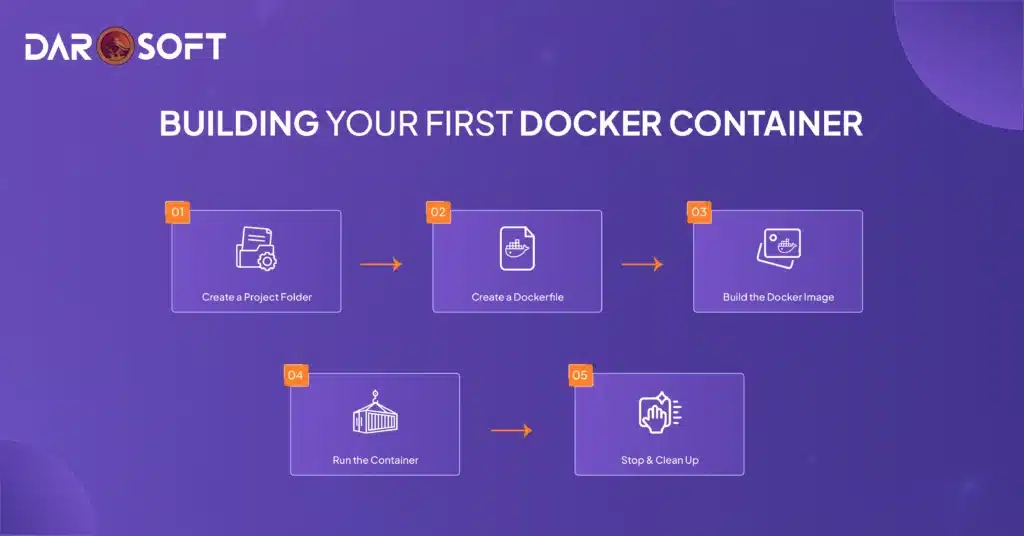
Building Your First Docker Container
Create a Project Folder
Open your terminal and run:
bash
mkdir my-nginx && cd my-nginx
Create a Dockerfile
Inside the folder, create a file named Dockerfile with the following content:
Dockerfile
# Use the official Nginx image from Docker Hub
FROM nginx:alpine
# Copy custom HTML into the container
COPY index.html /usr/share/nginx/html/index.html
Now, create a simple index.html file in the same folder:
html
<!– index.html –>
<!DOCTYPE html>
<html>
<head><title>Hello from Docker!</title></head>
<body><h1>It works</h1></body>
</html>
Build the Docker Image
Run the following command in the terminal:
bash
docker build -t my-nginx .
This creates a Docker image called my-nginx.
Run the Container
Now launch your container:
bash
docker run -d -p 8080:80 my-nginx
Visit http://localhost:8080 in your browser — you’ll see your custom page!
Stop & Clean Up
To stop the container:
bash
docker ps # find container ID
docker stop <id>
To remove the container and image:
bash
docker rm <id>
docker rmi my-nginx
Congratulations! You’ve just built and run your first Docker container.
Common Docker Commands You Should Know
Command | Description | Example |
docker build -t name . | Builds a Docker image from a Dockerfile | docker build -t myapp . |
docker run | Runs a container from an image | docker run myapp |
docker run -d -p 8080:80 name | Runs a container in the background and maps ports | docker run -d -p 8080:80 myapp |
docker ps | Lists all running containers | docker ps |
docker ps -a | Lists all containers (running + stopped) | docker ps -a |
docker stop <id> | Stops a running container | docker stop abc123 |
docker rm <id> | Removes a stopped container | docker rm abc123 |
docker rmi <image> | Removes a Docker image | docker rmi myapp |
docker exec -it <id> bash | Enters a running container’s shell | docker exec -it abc123 bash |
docker logs <id> | Shows logs for a running container | docker logs abc123 |
docker images | Lists all available images on your system | docker images |
docker pull <image> | Downloads an image from Docker Hub | docker pull nginx |
docker push <image> | Uploads an image to Docker Hub | docker push myapp |
Common Docker Pitfalls & Best Practices
Beginner Pitfalls to Avoid
Mistake | Why It’s a Problem |
Forgetting to clean up (docker system prune) | Wastes disk space with unused containers/images |
Running as root inside containers | Poses security risks in production |
Not using .dockerignore | Slows down builds by copying unnecessary files |
Hardcoding secrets in Dockerfile | Leaks sensitive data in images and logs |
Using latest tag blindly | Can lead to inconsistent builds and unexpected bugs |
Building bloated images | Increases size, slows down deployments |
Best Practices for Building Better Containers
Practice | Benefit |
Use small base images (alpine, distroless) | Faster, more secure images |
Keep Dockerfiles clean and layered wisely | Improves caching and build performance |
Use multi-stage builds | Helps produce lean, production-ready images |
Scan images for vulnerabilities | Improves security posture (e.g., with Snyk or Trivy) |
Tag images clearly (e.g., v1.0.0, prod) | Enables version control and stable deployments |
Clean up temporary files in Dockerfile | Keeps image size down and reduces risk |
Resources to Keep Learning Docker
To continue your Docker journey, start with the official Docker documentation, which offers a clear and structured guide for beginners. If you prefer hands-on learning, try Play with Docker, an online playground where you can practice without installing anything. For visual learners, the Docker for Beginners course on YouTube by freeCodeCamp is an excellent free resource. You can also explore real-world examples in the Docker Samples GitHub repository. To boost your command-line skills, check out the Docker CLI Cheat Sheet. If you’re looking to dive deeper, the book “Docker Deep Dive” by Nigel Poulton is a highly recommended read. Lastly, join the Docker Community via forums or Slack to connect with other learners and get support. These resources will help you build confidence and master Docker at your own pace.
Conclusion
Docker isn’t just a trend; it’s a powerful tool that simplifies how we build, test, and ship applications. By packaging everything your app needs into a container, Docker ensures consistency across environments, reduces bugs, speeds up deployments, and makes collaboration smoother across teams. Whether you’re developing micro services, working with CI/CD pipelines, or just looking to modernise your workflow, Docker helps you move faster and smarter. In a DevOps-driven world, knowing Docker isn’t optional; it’s a must-have skill for any developer who wants to stay relevant and productive.