- Written by: Hummaid Naseer
- July 4, 2025
- Categories: UI & UX
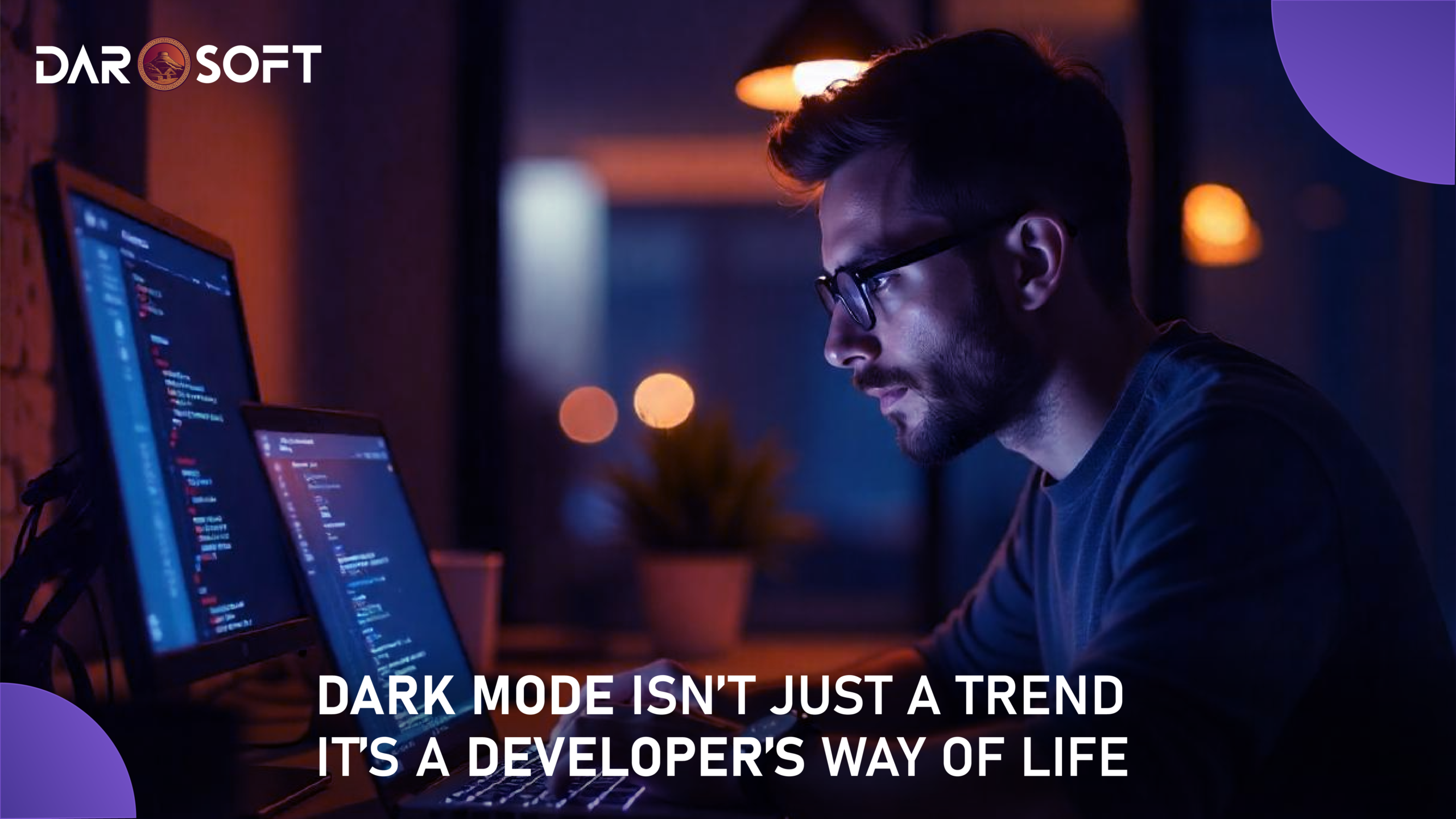
Dark mode has quickly moved beyond its origins as a sleek, stylistic alternative. Today, it’s a core UX and accessibility feature adopted by leading platforms from operating systems to productivity apps to developer tools. What began as an aesthetic preference has become a user-driven expectation, shaped by real benefits like reduced eye strain, better battery life on OLED screens, and improved readability in low-light environments.
Supporting a dark mode isn’t just about visual appeal; it’s about delivering flexible, context-aware experiences that meet users where they are. Whether you’re building for mobile, web, or desktop, understanding the role of dark mode is now a critical component of inclusive, user-centered design.
What is Dark mode, and why do Users Want It
Dark mode is a user interface (UI) option that inverts traditional light backgrounds to darker tones, typically black, dark gray, or deep blue, while keeping text and key elements in lighter contrast. What started as a novelty is now a mainstream feature, backed by growing demand and native support across iOS, Android, Windows, macOS, and major web browsers.
Why Users Choose Dark Mode:
Comfort in Low-Light Environments
Reduces glare and eye strain during nighttime use or in dim settings.Improved Battery Efficiency
On OLED screens, dark mode conserves power by turning off pixels completely in black areas.Focus and Visual Hierarchy
Darker backgrounds make primary elements pop, reducing visual noise and improving concentration.Perceived Modernity
Many users associate dark mode with tech-savviness and modern design, especially in developer or productivity tools.
Widespread Device & App Support:
Mobile: Native in iOS & Android settings; supported by apps like Instagram, Twitter, YouTube, and WhatsApp.
Web: CSS media queries (prefers-color-scheme) allow websites to respond to OS-level dark mode preferences.
Desktop: Integrated in OS themes (macOS, Windows) and popular tools (Slack, VS Code, Notion).
The UX Science Behind Dark Mode
Dark mode isn’t just a visual preference It addresses real physiological needs tied to visual comfort, eye strain, and cognitive fatigue, particularly in environments with low ambient light.
How Dark Mode Reduces Visual Stress
Lower Luminance Contrast
In traditional light mode, bright white backgrounds emit high luminance, which can create glare and increase visual tension, especially when switching from darker surroundings (e.g., late-night work).
Dark mode minimizes this intensity, reducing the strain on the pupillary response and making screens feel less harsh.Less Blue Light Exposure
While both dark and light modes emit blue light, dark mode, when paired with warm-tone filters, decreases brightness exposure overall, helping reduce melatonin disruption and improving sleep hygiene for evening users.Enhanced Focus in Low-Light Settings
With fewer bright elements demanding attention, dark interfaces help users focus on content, not UI chrome. This improves usability for tasks requiring sustained concentration (e.g., coding, writing, or reading reports).
Supporting Research:
A 2018 Google study found that using dark UI on OLED screens can reduce battery usage by up to 63%, indirectly encouraging lower brightness and eye strain. [wired.com]
Studies in human-computer interaction suggest that reduced screen brightness at night can lead to higher comfort levels, especially during prolonged sessions. [PMC Gov]
The Nielsen Norman Group reports that dark mode may improve readability and reduce fatigue for users with light sensitivity or certain visual impairments. [cueforgood]
Does Dark Mode Help or Hurt?
Dark mode can offer meaningful accessibility benefits but only when implemented with care. While some users, especially those with light sensitivity or visual fatigue, may find it easier on the eyes, others with certain visual impairments (like astigmatism or low vision) may struggle with readability on dark backgrounds.
The Pros: When Dark Mode Helps
Reduced Visual Fatigue
For users with photophobia (light sensitivity), dark mode helps minimize glare and brightness-induced strain.Comfort in Dim Environments
Lower screen brightness reduces eye dryness and fatigue, especially when paired with adequate contrast.Customizable Interfaces
Apps that allow switching between light and dark modes give users autonomy, a key tenet of accessible design.
The Cons: When Dark Mode Can Hurt
Reduced Readability for Some Users
People with astigmatism may experience blurring or haloing of light text on dark backgrounds due to how their eyes focus light, making dark mode harder to read over long periods.Poor Contrast Implementation
Not all dark modes follow proper contrast ratios, making interfaces harder to navigate for users with low vision or color blindness.
WCAG Guidelines and Dark Mode
According to the Web Content Accessibility Guidelines (WCAG):
Minimum contrast ratio should be 4.5:1 for normal text and 3:1 for large text.
Backgrounds and foregrounds in dark mode must still meet these ratios to be considered accessible.
Use of pure black (#000000) and pure white (#FFFFFF) is discouraged, as it may cause halation (excessive contrast glare).
Best Practices for Accessible Dark Mode:
Practice | Why It Matters |
Use dark gray (#121212) instead of pure black | Reduces glare and improves text legibility |
Maintain high but not harsh contrast | Prevents strain for users with visual impairments |
Let users switch modes or set system preferences | Empowers accessibility and personalization |
Test with screen readers and users with low vision | Ensures semantic and perceptual usability |
When Dark Mode Improves UX
Dark mode has undeniable advantages but its effectiveness depends heavily on context, user behavior, and design execution. When thoughtfully implemented, it can enhance focus, comfort, and aesthetics. But when misapplied, it can lead to readability issues, poor contrast, and user frustration.
When Dark Mode Improves UX:
Use Case | Why It Works |
Media-Heavy Apps (e.g., Netflix, YouTube) | Dark backgrounds let content stand out and reduce screen distraction. |
Developer Tools & Code Editors (e.g., VS Code, GitHub) | Helps reduce visual fatigue during prolonged screen time. |
Late-Night Use | Prevents eye strain in dim environments and lowers blue light exposure. |
Battery Efficiency on OLED Displays | On dark backgrounds, OLED pixels turn off conserving energy significantly. |
Gaming & Creative Tools | Emphasizes content over interface; aligns with ambient environments. |
When Dark Mode Hurts UX:
Design Pitfall | Why It Creates Friction |
Poor Contrast Ratios | Light text on dark backgrounds often fails WCAG standards, hurting readability. |
Inappropriate Color Palettes | Bright neon or saturated colors on black can cause eye strain and feel jarring. |
Lack of User Choice | Forcing dark mode without a toggle alienates users who find it hard to read. |
Daylight or High-Glare Environments | Dark interfaces become harder to see in bright light or outdoors. |
Overuse in Text-Heavy Apps | Long-form reading (e.g., blogs, articles) is often more readable in light mode. |

Design Considerations for UI
Creating a cohesive, accessible, and visually balanced dark mode isn’t just about flipping colors it requires thoughtful design choices that account for readability, hierarchy, and emotional tone. Below are four critical elements to get right:
1. Text Contrast and Font Clarity
Use off-white text (#EAEAEA or #F1F1F1) instead of pure white to reduce glare.
Ensure contrast ratios meet WCAG 2.1 standards (minimum 4.5:1 for body text).
Maintain consistent font weights and sizes to preserve readability across light and dark themes.
Avoid using colored text without sufficient background contrast, particularly red, green, or blue tones on dark surfaces.
2. Icon and Button Visibility
Re-color or re-tint icons for clarity against dark backgrounds (use white or light greys with appropriate opacity).
Add subtle inner shadows or glows to maintain visibility without overwhelming the UI.
Maintain consistent button states (hover, active, disabled) with distinguishable tints and states, as hover effects can get lost on dark UIs.
3. Background and Elevation Handling
Use shades of dark gray (e.g., #121212, #1E1E1E, #2C2C2C) to create subtle depth and elevation.
Layering is critical using soft shadows or gradients to separate cards, modals, or surfaces without adding harsh borders.
Avoid pure black (#000000) across the board it flattens the interface and amplifies glare around light elements.
4. Color Psychology in Dark Contexts
Warm tones (orange, amber) can feel more inviting and legible than cold tones (blue, cyan) in dark environments.
Use accent colors sparingly to avoid overstimulation or accessibility issues (especially red/green combinations for colorblind users).
Calm neutrals (soft blues, purples, desaturated greens) often work best for buttons and highlights in professional or enterprise interfaces.
Dark Mode Implementation Pitfalls
Pitfall | Issue | Best Practice |
Inverted Design Logic | Simply inverting colors breaks hierarchy and contrast. | Design dark mode as a separate visual system, not a color flip. Adjust shadows, spacing, and contrast purposefully. |
Inconsistent Branding | Brand colors or logos change, weakening identity. | Use adaptive palettes that maintain brand integrity while adjusting tone (e.g., soften brights without altering hue). |
Unreadable Form Fields | Input borders and placeholder text become invisible. | Define high-contrast input fields, and ensure placeholders and disabled states are legible. |
Missing State Feedback | Hover, focus, or error states are too subtle or invisible. | Add clear visual indicators (glow, outline, color shifts) for interaction and validation states. |
No User Control | Users can’t toggle between light/dark modes. | Respect system settings (prefers-color-scheme) and offer a manual toggle with persistent settings. |
System-Level Dark Mode
Modern operating systems like Windows, macOS, Android, and iOS allow users to set a system-wide light or dark theme based on their preferences, environment, or accessibility needs. Respecting these OS-level settings using the prefers-color-scheme media query isn’t just a technical detail; it’s a UX signal of quality and inclusivity.
Benefit | Explanation |
Improves Accessibility | Users with light sensitivity, migraines, or visual strain often rely on dark mode. Adapting automatically reduces friction and cognitive effort. |
Delivers a Seamless Experience | Apps and websites that follow system settings feel more integrated and polished, especially in multi-app workflows. |
Increases User Trust | Honoring user preferences signals respect for control and personalization, boosting perceived professionalism. |
Reduces Manual Switching | Automatically adapting eliminates the need for toggles and repetitive adjustments across apps. |
Designing Dark Mode with Accessibility in Mind
Designing an accessible dark mode isn’t just about aesthetics; it’s about ensuring clarity, usability, and comfort for all users, including those with visual impairments, cognitive differences, or specific environmental needs. Below are practical, field-tested tips for UI/UX teams:
Best Practice | Why It Matters | How to Apply It |
Use WCAG-Compliant Contrast Ratios | Ensures text is readable for users with low vision or color blindness. | Maintain a minimum 4.5:1 contrast ratio for body text, and 3:1 for larger text. Test with tools like WebAIM Contrast Checker. |
Avoid Pure Black (#000000) | Harsh contrast with white text strains the eyes, especially in low light. | Use dark grays (e.g., #121212, #1E1E1E) to create a more comfortable, less glaring experience. |
Test with Screen Readers and Keyboard Navigation | Dark mode shouldn’t break accessibility for non-visual users. | Use screen readers (NVDA, VoiceOver) to ensure semantic structure and contrast don’t hinder accessibility. |
Indicate Interactive Elements Clearly | Hover/focus states often fade on dark backgrounds. | Apply high-visibility outlines, color shifts, or glow effects for links, buttons, and inputs. |
Avoid Color-Only Distinctions | Colorblind users may not perceive UI cues. | Combine color with icons, text labels, or motion to show errors, alerts, or states. |
Design and Test Across Devices | Colors, brightness, and legibility vary by screen. | Preview dark mode on phones, tablets, OLED/LED displays, and under various lighting conditions. |
Offer a Toggle or Auto Detect | Users prefer flexibility and control. | Provide a manual light/dark switch, and support prefers-color-scheme for automatic adaptation. |
FAQs
Q1: Why do users prefer dark mode?
A: Many users find dark mode easier on the eyes, especially in low-light environments. It can reduce glare, improve focus, and even save battery life on OLED screens.
Q2: Is dark mode better for accessibility?
A: It depends. When implemented correctly with proper contrast ratios and clear UI elements, dark mode can improve accessibility. But poor design choices (like low contrast or hard-to-read text) can make it less accessible for some users.
Q3: Should I always include a dark mode toggle?
A: Yes. While supporting system preferences via prefers-color-scheme is great, giving users manual control ensures flexibility and improves user experience.
Q4: Does dark mode save battery?
A: On OLED screens, yes. Since OLED pixels turn off to display black, dark mode can reduce power consumption. On LCD screens, the difference is minimal.
Q5: Can dark mode affect brand identity?
A: Only if it’s poorly executed. With thoughtful color adaptation and consistent design tokens, dark mode can reinforce your brand while adapting to new environments.
Conclusion
Dark mode isn’t just a visual preference. It’s a user-first design decision that impacts comfort, accessibility, and brand perception. When thoughtfully implemented, it signals that your product cares about real-world use cases: late-night workflows, low-light environments, visual fatigue, and user autonomy.
UI designers and developers should approach dark mode not as a last-minute toggle or trend-chasing feature, but as a core part of inclusive design. From contrast compliance and semantic clarity to visual hierarchy and consistent theming, every choice should enhance usability for all users.