- Written by: Hummaid Naseer
- July 7, 2025
- Categories: UI & UX
Accessibility isn’t just about meeting legal requirements; it’s about designing digital experiences that work for everyone. In modern UX/UI design, accessibility should be built into the design from the start, not added later.
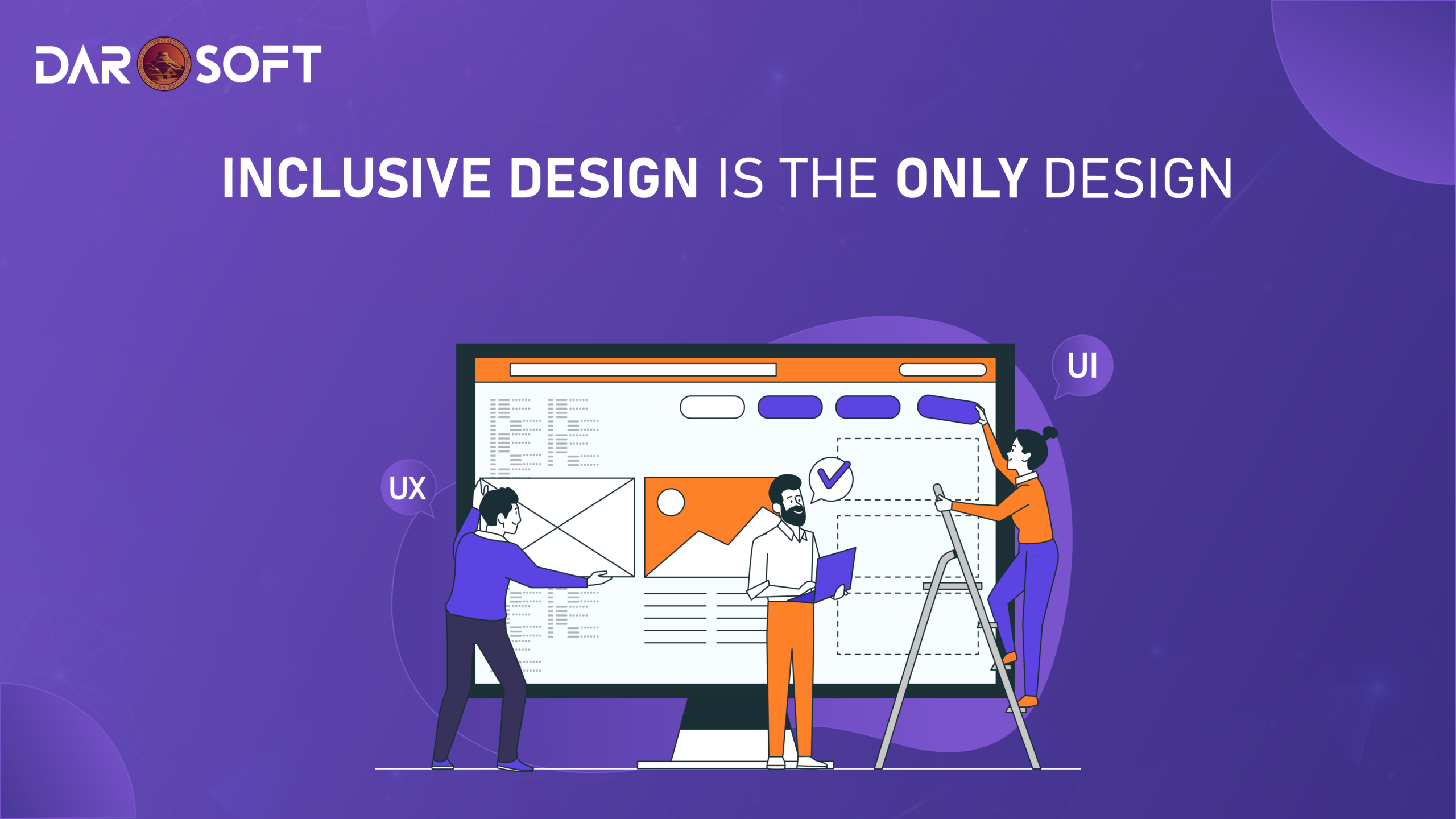
Inclusive Design Is the Only Design
By creating interfaces that are usable by people with a range of abilities, including those with visual, auditory, cognitive, or motor impairments, designers generate better, more inclusive products. The bonus? Accessible design improves usability for all users, enhances S.E.O, and expands your product’s reach, making it not just a moral obligation but a smart business decision.
What Is Accessibility in Digital Product Design?
Accessibility in digital product design means creating websites and applications that can be used by people of all abilities and disabilities. It ensures that users with visual, auditory, cognitive, or motor impairments can access and interact with digital content effectively. This involves following standards like the Web Content Accessibility Guidelines (W.C.A.G), which provide specific criteria for making content perceivable, operable, understandable, and robust.
Accessible design also incorporates assistive technologies such as screen readers, voice control, and keyboard navigation to ensure that everyone can complete essential tasks. At its core, accessibility is about inclusive design, building experiences that are usable by the widest possible audience, regardless of their physical or cognitive abilities.
Business Case for Accessible Design
Reach a Wider Audience
Accessibility directly impacts market size. Around 20% of people globally live with some form of disability, including visual, auditory, cognitive, and motor impairments. This doesn’t even include temporary (e.g., a broken arm) or situational (e.g., using a phone in bright sunlight) disabilities.
Improve S.E.O and Overall Performance
Many accessibility best practices overlap with technical S.E.O and web performance optimisation, meaning accessible sites often rank better and load faster.Reduce Legal Risk
Non-compliance with accessibility standards can lead to legal consequences, especially in the U.S. and the EU. The ADA (Americans with Disabilities Act) and W.C.A.G (Web Content Accessibility Guidelines) form the legal basis for digital accessibility.
Boost Brand Trust and Customer Loyalty
An accessible product sends a strong signal: Your brand values inclusivity and user care.
Accessibility by the Numbers
Stat | Insight |
1 in 5 | People have a permanent or temporary disability (CDC, WHO) |
71% | Users with disabilities will leave a site that is hard to use (Pew/ClickAwayPound) |
15% | Of the world’s population lives with a disability (WHO) |
220% | Average ROI seen from accessibility fixes (Forrester/Level Access) |
Key Accessibility Principles For Every UI/UX Designer
1. The User Must be Able to Sense the Content
Definition: Information and UI elements must be presented in ways users can perceive, whether visually, audibly, or through assistive technologies.
Best Practices:
Text Alternatives: Use descriptive alt text for images (e.g., “User clicking ‘Buy Now’ on the product page” instead of “image123.jpg”).
Color Contrast: Ensure text has a contrast ratio of at least 4.5:1 against its background. For example, dark grey (#333) on white works; light grey (#aaa) on white does not.
Captions & Transcripts: Provide captions for videos and transcripts for audio content.
Avoid Color Alone: Don’t rely solely on color to convey meaning (e.g., errors in a form should be marked with icons or text, not just red borders).
2. The User Must be Able to Navigate and Interact
Definition: All interactive elements (buttons, links, forms, etc.) must be usable via keyboard, mouse, screen reader, or other assistive devices.
Best Practices:
Keyboard Navigation: Make sure users can tab through links, buttons, and form fields in a logical order.
Visible Focus State: Show a visible outline (e.g., blue border) when elements are focused via keyboard.
Avoid Time-Based Triggers: Provide users with enough time to read and act on content (e.g., avoid auto-closing models without a manual option).
Gesture Alternatives: For mobile apps, if a feature uses gestures (like swiping), offer alternatives (like arrows or buttons).
3. Content Must Be Clear and Predictable
Definition: Users must be able to comprehend the information and interface. The UI should behave in expected and consistent ways.
Best Practices:
Plain Language: Use short, clear sentences. Instead of “Commence account creation,” say “Create your account.”
Consistent Navigation: Keep menus, icons, and layouts consistent across pages or screens.
Error Prevention & Messaging: Highlight errors clearly (e.g., “Please enter a valid email address”) and offer guidance to fix them.
Form Labels & Instructions: Ensure every input field has a clear label and hint text if needed.
4. Content Must Work Across Technologies
Definition: Your product must remain accessible across a wide range of browsers, screen readers, and assistive technologies.
Best Practices:
Use Semantic HTML: Use elements like <button>, <label>, <form> rather than generic <div>s and <span>s for functionality.
ARIA Landmarks & Roles: Use ARIA only when semantic HTML won’t suffice. For example, <nav role=”navigation”> helps screen readers understand the layout.
Responsive Design: Ensure your app/site works across different screen sizes and orientations (mobile, tablet, desktop).
Avoid Tech Lock-In: Don’t rely on one specific plugin, browser, or device (e.g., Flash-only interfaces).
Summary Table
Principle | What It Ensures | Design Example |
Perceivable | Users can see/hear/feel the content | High-contrast text, alt text for images |
Operable | Users can navigate via various inputs | Keyboard-friendly forms, visible focus |
Understandable | Users comprehend actions and feedback | Clear CTAs, helpful error messages |
Robust | Content works with current and future tech | Semantic HTML, ARIA roles, responsive layout |

Designing with Empathy
Accessibility isn’t just about screen readers or serving users who are blind. It’s about creating inclusive experiences for people with a wide range of abilities. Designing with empathy means thinking broadly about how different users interact with digital products and proactively removing barriers for them. Here’s how to go beyond the basics:
1. Color Contrast for Colorblind Users
The Challenge:
Millions of users have some form of color vision deficiency (e.g., red-green color blindness).
If your interface relies solely on color to convey meaning, they may miss key information.
Design Empathy in Action:
Use sufficient color contrast (minimum 4.5:1 ratio for normal text).
Avoid red/green or blue/purple combinations without other indicators.
Add icons, labels, or patterns to supplement color-based cues.
2. Keyboard Navigation for Motor Limitations
The Challenge:
Some users can’t use a mouse due to motor disabilities (e.g., Parkinson’s, cerebral palsy, or injury) and rely entirely on the keyboard or assistive switches.
Design Empathy in Action:
Ensure all interactive elements (buttons, links, form inputs) are keyboard-accessible via Tab/Shift+Tab and Enter/Space.
Provide a visible focus indicator to show which element is selected.
Avoid hover-only actions offer click or focus-based alternatives.
3. Clear Content for Cognitive Accessibility
The Challenge:
Users with cognitive differences (such as dyslexia, ADHD, or learning disabilities) may struggle with dense text, unclear instructions, or fast-changing content.
Design Empathy in Action:
Use plain language and short sentences.
Avoid jargon, and explain technical terms where needed.
Break content into scannable sections with headings, bullet points, and whitespace.
Give users control over motion (e.g., pause or disable autoplay animations).
Common Accessibility Mistakes in UI Design
Even well-intentioned digital products often overlook key accessibility principles, leading to frustrating or exclusionary user experiences. Here are some of the most common UI design mistakes that harm accessibility, and how to fix them:
Low-Contrast Text
Why It’s a Problem:
Text that lacks sufficient contrast with the background is hard to read for users with low vision, color blindness, or even in bright lighting conditions.
Example:
Light gray text on a white background.
Fix:
Follow WCAG guidelines:
Minimum contrast ratio of 4.5:1 for normal text.
Use tools like WebAIM Contrast Checker to validate colors.
Inaccessible Form Labels
Why It’s a Problem:
If form inputs don’t have clear, associated labels, users relying on screen readers or voice input may not know what each field is for.
Example:
A search box with only a placeholder like “Search…” and no visible label.
Fix:
Use the <label> element with a for attribute linking it to the input.
Always provide a visible label; placeholders should never replace it.
Non-Descriptive Buttons and Links
Why It’s a Problem:
Buttons labeled “Click here” or links saying “More” don’t convey context when read out of order by screen readers.
Example:
“Click here” to learn more about our services.
Fix:
Use descriptive text: “Learn more about our cloud solutions.”
Provide context even when links are listed separately.
Missing Keyboard Focus Styles
Why It’s a Problem:
Users navigating by keyboard need to see which element is currently focused. Removing or hiding focus indicators makes navigation nearly impossible.
Fix:
Never remove the default outline unless replacing it with a clear, visible custom style.
Test your site using only a keyboard (Tab, Shift+Tab, Enter).
Clickable Elements Too Small or Close Together
Why It’s a Problem:
Small buttons or links that are tightly packed can be difficult for users with motor impairments or those on touchscreens to tap accurately.
Fix:
Ensure touch targets are at least 44×44 pixels.
Add spacing between interactive elements.
Images Without Alt Text
Why It’s a Problem:
Screen readers rely on alt text to describe images. Without it, users miss key visual information or context.
Fix:
Add meaningful alt attributes to all images.
For decorative images, use alt=”” to tell screen readers to skip them.
Design Tools and Techniques for Accessible Interfaces
Creating accessible digital experiences isn’t just about intention. It requires using the right tools and techniques throughout the UI/UX design and development process. Here’s how to ensure your designs are inclusive and meet accessibility standards:
1. Semantic HTML & ARIA Roles
Why It Matters:
Semantic HTML (like <nav>, <header>, <main>, <button>) communicates meaning and structure to assistive technologies like screen readers. ARIA (Accessible Rich Internet Applications) roles enhance accessibility for dynamic content.
Best Practices:
Use semantic HTML first before reaching for ARIA.
Use ARIA only when necessary, like role=”dialog” for modals or aria-expanded for dropdowns.
Pair ARIA attributes with proper keyboard handling and visual cues.
2. Color Contrast Checkers
Why It Matters:
Good color contrast ensures that text and important UI elements remain readable for users with visual impairments or color blindness.
Tools to Use:
Stark: A plugin for Figma, Sketch, and Adobe XD that checks contrast and simulates color blindness.
Contrast Ratio by Lea Verou: A simple web tool to test and tweak contrast.
WebAIM Contrast Checker: Trusted reference for WCAG compliance.
Minimum Guidelines:
Normal text: 4.5:1
Large text (18pt or 14pt bold): 3:1
Non-text elements (icons, borders): Should also meet contrast thresholds.
3. Focus States
Why It Matters:
Focus indicators allow keyboard users to see where they are on the page. Removing or ignoring focus states creates major barriers to navigation.
Best Practices:
Never remove focus outlines unless replaced with a clear custom style.
Use visible indicators like shadows, borders, or background changes.
Test keyboard navigation using Tab, Shift + Tab, and Enter.
4. Alt Text for Images
Why It Matters:
Screen readers rely on alt attributes to describe visual content. Without it, visually impaired users miss critical information.
Best Practices:
Write descriptive alt text that captures the purpose of the image (e.g., “Checkout button” or “Graph showing Q2 growth”).
For decorative images, use alt=”” so screen readers skip them.
Avoid phrases like “image of” or “picture of”; screen readers already indicate it’s an image.
5. Testing with Assistive Tech and Simulators
Why It Matters:
Design tools don’t always catch everything. Real-world testing with screen readers, voice control, and simulation tools reveals hidden barriers.
Recommended Tools:
VoiceOver (macOS/iOS) and NVDA or JAWS (Windows) for screen reader testing.
axe DevTools (browser extension) for automated accessibility checks.
Fable, Deque, or UsableNet for user testing with people with disabilities.
Testing for Accessibility
Designing with accessibility in mind is essential, but testing ensures your intentions translate into real-world usability. Accessibility testing should be a continuous part of your design and development process, not a final step. Here’s how to integrate it into your workflow effectively:
Automated Testing Tools
Start by running quick, automated accessibility checks. These tools catch many common issues like low contrast, missing alt attributes, and improper heading structures.
Axe DevTools (by Deque): A browser extension that highlights W.C.A.G violations on any web page. It’s beginner-friendly and powerful.
Lighthouse (built into Chrome DevTools): Provides accessibility scores alongside performance, S.E.O, and best practices. It gives actionable insights with links to documentation.
WAVE (Web Accessibility Evaluation Tool): Offers a visual overlay of accessibility issues for any page, including color contrast, ARIA use, and form errors.
Screen Reader Testing
Automated tools can’t catch everything. Testing with screen readers ensures your site works well for blind or visually impaired users.
VoiceOver (macOS/iOS): Native to Apple devices, great for testing web and mobile apps.
NVDA (Windows): Free and widely used screen reader compatible with most browsers.
JAWS (Windows): Industry-standard but paid; offers full accessibility coverage.
What to check:
Can users navigate through headings, links, and form fields logically?
Is the button and link text clear without visual context?
Does the focus move intuitively from one element to the next?
Usability Testing with Real Users
Nothing replaces feedback from real people. Involving users with different disabilities (visual, motor, cognitive, auditory) helps uncover gaps that tools and designers often miss.
How to implement:
Partner with accessibility testing platforms like Fable, Accessi.org, or Userway.
Include people with assistive technology in your beta testing pool.
Observe how users interact with your site: where they get stuck, what slows them down, or what’s not intuitive.
Integrating Accessibility into Dev Workflows
Add Axe or Lighthouse into your CI/CD pipeline to automate checks on every commit.
Create accessibility acceptance criteria for new features or UI components.
Use tools like Storybook with a11y addons to test UI components in isolation.
FAQs
1. What is accessibility in UI/UX design?
Accessibility refers to designing digital products, websites, apps, and tools so that they can be used by people with a wide range of abilities, including visual, auditory, motor, and cognitive disabilities. It follows standards like the WCAG (Web Content Accessibility Guidelines).
2. Why is accessibility important in digital product design?
Accessible design ensures inclusivity, improves user experience, boosts S.E.O, reduces legal risk, and increases your potential audience. Nearly 1 in 5 users has a temporary or permanent accessibility need.
3. What are the key accessibility principles I should follow?
The four W.C.A.G principles are:
Perceivable: Content must be presented in ways users can perceive (e.g., alt text for images).
Operable: Interfaces must be usable via keyboard and other assistive devices.
Understandable: The design should be clear and predictable.
Robust: Content must work across current and future tools, including screen readers.
4. What tools help check accessibility during design or development?
Some popular tools include:
Axe and Lighthouse for audits
Stark and Contrast Ratio for color contrast
VoiceOver, NVDA, or JAWS for screen reader testing
WAVE for visual accessibility checks
5. How does accessibility affect SEO?
Accessible websites are often better optimised for search engines. Semantic HTML, clear structure, alt text, and fast loading times all contribute to improved SEO performance.
6. What are some common accessibility mistakes in UI design?
Low-contrast text
Missing alt text for images
Forms without accessible labels
Non-descriptive links/buttons (“Click here”)
Ignoring keyboard navigation
Conclusion
Accessibility isn’t just about meeting compliance; it’s about creating experiences that are inclusive, usable, and welcoming to all. When you design with accessibility in mind, you make your product easier to use for everyone, not just users with disabilities. Clearer content, better contrast, keyboard-friendly navigation, and intuitive interactions benefit users across devices, abilities, and environments.